
One of the most popular image generation tools, Midjourney stands out with its unique features compared to other visual research tools. In this guide, we’ll walk you through everything you need to know to use Midjourney more effectively.
As one of the most widely used AI-powered visual generation tools, Midjourney has become a favorite way to bring imagination to life. By allowing users to create unique and impressive visuals through text-based prompts, Midjourney’s simple interface and endless possibilities make it a top choice for both professionals and hobbyists.
Below, we’ve gathered practical tips to help you use Midjourney more efficiently. From writing effective prompts to using parameters correctly and avoiding common mistakes — we’ll cover all the essential points.
Secrets of Writing Effective Prompts
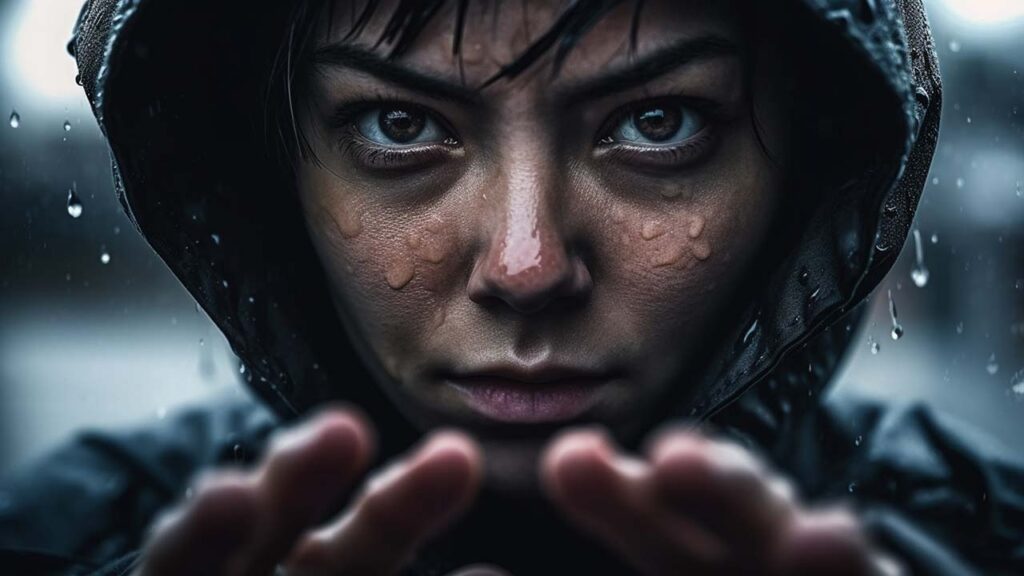
The most important step in getting high-quality and desired results in Midjourney is to master prompt writing. The more detailed and clear your prompt is, the better the AI can understand and recreate the visual you imagine.
- Keywords: The keywords you use form the foundation of your visual. Choose specific words that clearly express what you want. For example, instead of “cat”, try “a tabby cat sitting on the street.”
- Style and Art: Indicating the artistic style you want will significantly affect the result. Use expressions like “digital art,” “watercolor,” “realistic photo,” or “anime style.”
- Details: Include elements like lighting (e.g., “soft light,” “neon lights”), camera angles (e.g., “close-up,” “wide shot”), color palettes (“pastel colors,” “monochrome”), composition, or emotional tones (“melancholic atmosphere,” “joyful scene”) to make your image more accurate.
- Negative Prompt (–no): To exclude unwanted elements, use the
--noparameter. For instance, to remove people from a forest scene, end your prompt with--no people. - English Prompts: Like many AI tools, Midjourney works best with English commands. Write your prompts in English whenever possible for better results.
Midjourney Parameters
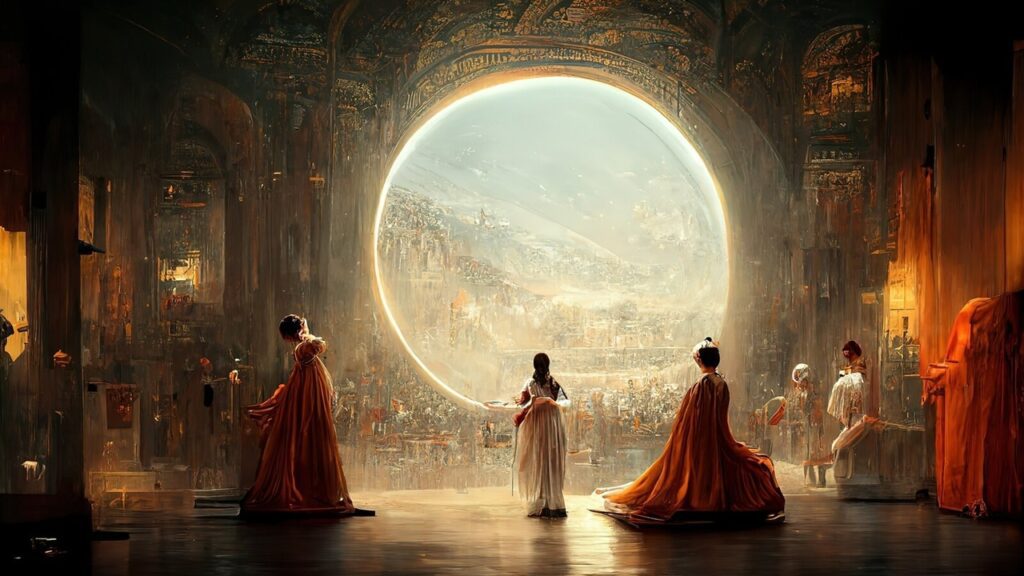
Midjourney allows you to enhance your images with various parameters added to your prompts. These parameters let you control aspects like aspect ratio, quality, stylization, and more.
- Aspect Ratio (–aspect or –ar): Sets the dimensions of the image. For example, use
--ar 1:1for a square image,--ar 16:9for a landscape, or--ar 2:3for a portrait. - Chaos (–chaos <0-100>): Determines how varied and unexpected the results are. Lower values stick closely to the prompt, while higher values produce more experimental visuals.
- Quality (–quality or –q <.25, .5, 1>): Affects rendering time and detail level. Default is 1. Use .25 or .5 for faster but less detailed images.
- Stylization (–stylize or –s <0–1000>): Controls how artistic the result is. Low values stick closer to the prompt, while high values create more stylized images.
- Version (–version or –v): Allows you to select different algorithm versions of Midjourney (e.g.,
--v 5.2). Each version has unique characteristics and interpretation styles. - Repeat (–repeat or –r <1–40>): Runs the same prompt multiple times to generate different variations.
- Seed (–seed): Produces similar images using the same seed and prompt, which is useful for keeping a consistent style or composition while making small changes.
Advanced Techniques and Tips
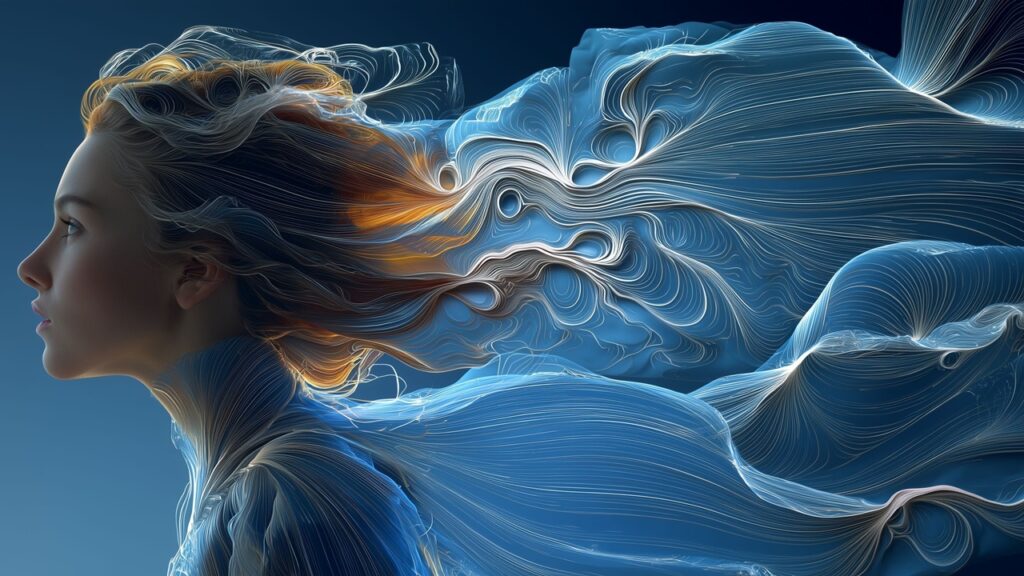
To truly master Midjourney, go beyond the basics with these advanced techniques:
- Image Prompting: Use an existing image as part of your prompt to inspire the AI. Just paste the image’s URL at the beginning of your prompt followed by a description.
- Remix Mode: Enable Remix Mode in your settings to modify your prompt when creating new variations (via the V buttons). It’s great for iterative editing.
- Multi-Prompting: Assign different weight to concepts using
::. For example,spaceship::2 city::-1tells the AI to emphasize the spaceship more than the city. - /describe Command: Upload an image and Midjourney will generate four prompt suggestions that describe it. This helps you learn how to write similar prompts for visuals you admire.
Frequently Asked Questions
How to use negative prompts in Midjourney?
To remove unwanted elements, simply add --no followed by the item. Example: --no car will exclude cars from the image.
How to increase image quality in Midjourney?
Click the “U” (upscale) buttons to enhance the resolution of a selected image. You can also improve quality by using more detailed prompts, selecting newer versions (--v), or adjusting the quality parameter (--quality).
How to specify a particular artist or style?
You can mention the artist directly (e.g., “in the style of Van Gogh”) or specify an art movement (e.g., “impressionist painting,” “cyberpunk art”). Adjusting the --stylize value also affects artistic expression.
Can I use the images I generate on Midjourney commercially?
Midjourney’s Terms of Service indicate that paid subscribers generally have more rights to use their creations commercially. However, always check the latest official guidelines on their website for accurate and up-to-date information.