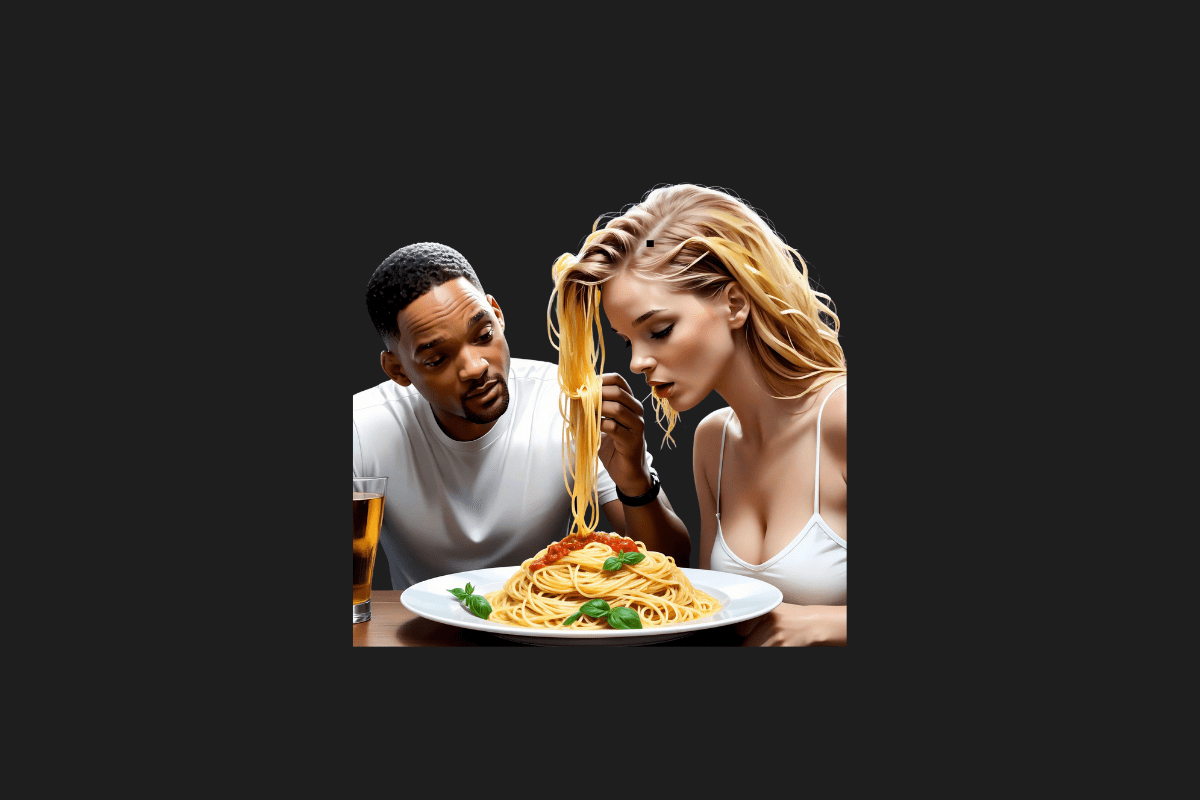
Let’s be honest, the biggest frustration with current AI video generators isn’t the quality—it’s the consistency. You generate an amazing five-second clip of a character, but the moment you try to generate the next scene, your protagonist suddenly has a different haircut, a new outfit, or has morphed into a totally different person.
It’s impossible to tell a story when your main character changes faces every few seconds.
But I recently stumbled upon a workflow being shared quietly among power users that completely changes the game. It turns out, Grok has a somewhat hidden capability that allows us to chain scenes together, keeping characters consistent for videos that run way longer than the usual one-minute limit.
The best part? You don’t need expensive subscriptions or a degree in prompt engineering. I’m going to walk you through the exact process I used to create a seamless, long-form AI video for free.
Here is the step-by-step breakdown of how to hack Grok’s video generation.
1. The Blueprint: Scripting and Scene Setup


Before we even touch Grok, we need a battle plan. If you just start generating random clips, you’ll end up with a mess. We need a coherent story.
For this, I turn to our trusty friend, ChatGPT.
The Strategy: I asked ChatGPT to write a short, simple story in the style of a Disney-Pixar film.
- Crucial Ugu Tip: Keep your cast small. I highly recommend limiting the story to a maximum of two characters. The fewer variables you introduce, the easier it will be for the AI to maintain visual consistency later on. If you try to juggle five characters, the AI will get confused.
Once ChatGPT generated the story, I didn’t stop there. I asked it to break that story down into individual, highly detailed visual image prompts for each specific scene. This is vital. You need a clear text blueprint for every 5-10 second chunk of your final video.
2. Genesis: Creating the First Scene in Grok

Now it’s time to fire up Grok.
Switch Grok over to visual mode and paste in the prompt for your very first scene. Grok will usually give you a few image variations. Take your time here—pick the image that perfectly captures the look and feel you want for the entire video. This image sets the standard for everything that follows.
Once you have “the one,” hit the Make Video option on that image.
- Important Setting: Before you generate, double-check your aspect ratio. Make sure it is set to 16:9. We want cinematic, YouTube-ready widescreen output, not vertical mobile format.
3. The “Secret Sauce”: The Infinite Loop Technique 🔄


This is it. This is the step that 90% of people miss, and it’s the key to making this whole thing work. If you just paste the next text prompt in, Grok will start from scratch and your character continuity will be destroyed.
We need to force Grok to remember what happened in the previous clip.
Step 3a: The Critical Setting Change Before you do anything else, click on your profile picture in Grok to open the settings menu. Navigate to the “Behavior” section and turn OFF “Automatic Generation.”
Why? If this is on, Grok sometimes thinks it knows better than you and will ignore your reference images to speed things up. Turning it off forces the AI to pay attention to the inputs we are about to give it.
Step 3b: The Frame-Chaining Method
- Take your first completed video clip.
- Go to the very last second of that video and pause it.
- Right-click the video player and save that final frame as an image to your computer.
- Now, go back to the Grok prompt box. Paste that saved final frame image first.
- Right underneath the image, paste the text prompt for your second scene.
When you hit generate now, Grok isn’t starting from zero. It’s using that final frame of Scene 1 as the visual anchor for the start of Scene 2. It sees the character, the lighting, and the environment, and extends the action naturally.
Rinse and Repeat: When Scene 2 is done, save its final frame, and use it as the input for Scene 3. It’s like building a digital daisy chain.
4. The Voice: Generating Free Narration

Silent movies are great, but let’s add some professional polish. Since we are keeping this a “zero-budget” project, I used Google AI Studio for the voiceover.
It’s surprisingly robust. I selected the “Single Speaker” option, pasted in the full story text I got from ChatGPT earlier, and generated the audio. The result is a clean, high-quality narration file that you can download instantly.
5. The Final Cut: Bringing It All Together


By this point, you should have a folder on your computer filled with numbered video clips that visually flow into each other, and one master audio narration file.
Now we just need to assemble the puzzle pieces.
You don’t need expensive software like Adobe Premiere Pro for this (though you can use it if you have it). I used Microsoft’s built-in Clipchamp editor because it’s free and easy, but CapCut is another great option.
The Editing Process:
- Import all your video clips and your audio track into the editor.
- Drag them onto the timeline in order.
- Pro Tip for Grok Users: Sometimes Grok’s video generation doesn’t perfectly fill the 16:9 canvas, leaving tiny black bars on the edges. I usually select all my video clips in the timeline and scale them up to about 120% to ensure they fill the screen completely.
- Sync the audio. If your narration runs longer than your video clips, just slightly slow down the playback speed of the video clips until they match the length of the voiceover.
Export your final masterpiece, and you are done!
Final Thoughts
It takes a little bit of manual effort to save those frames and chain them together, but the results are totally worth it. You are no longer limited to 5-second GIFs; you are creating actual animated sequences with consistent characters, all for free.
I’ve embedded the example video I made using this exact method at the top of this article so you can see the consistency in action.
I’m really curious to see what you guys make with this workflow. Are you planning a sci-fi epic or a cozy bedtime story for your first attempt? Let me know in the comments below!
You Might Also Like;
- Beyond Lasers and Spaceships: Sci-Fi Masterpieces That Question Existence
- The Rise of Robo-K9s: Tech Meets Security at the World Cup
- AI Is Parched: The Hidden Environmental Cost of Our Digital Future
-
-
-
-

-
-

-
-
-
-
-
-